
You may have noticed something new on our website in the last couple of weeks.
Floating in the right-hand corner of each page, you’ll see this circular symbol in dark blue.
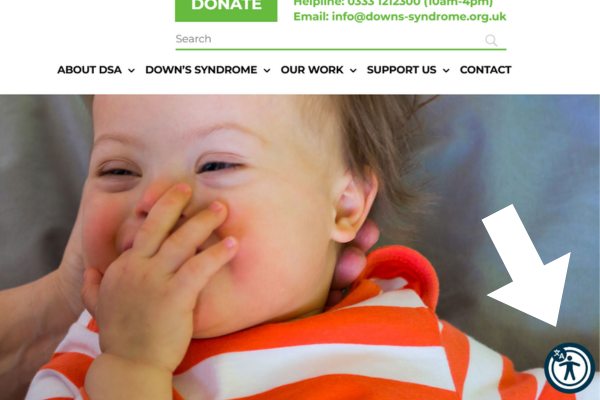
Click this icon and you’ll launch the ReciteMe toolbar, which gives you the ability to customise the way you access our content, in a way that works best for you.
This new addition to our website is part of our ongoing commitment to improving the accessibility of our information and resources. Here’s a brief guide to what it can do.
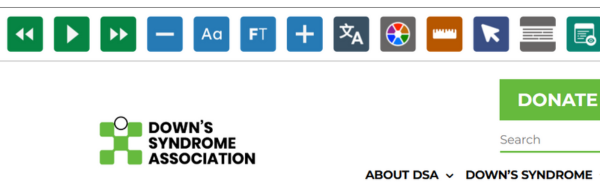
The ReciteMe Toolbar allows you to change the size of the letters, the colour of the background, the size of the letters and even the font that the website uses.
You can ask ReciteMe to ‘read’ the webpage text out loud for you, and if you open a pdf resource after launching the ReciteMe toolbar on our website, it will read that to you as well.
The ReciteMe tool also has a translation option which works on webpages and pdfs. The tool has access to over 100 different languages, from Afrikaans to Zulu.
This is what the Toolbar looks like when it opens up:
It’s really easy to use, but if you would like more guidance there is a user guide here which you can also access from the Toolbar.
Just press the More button:
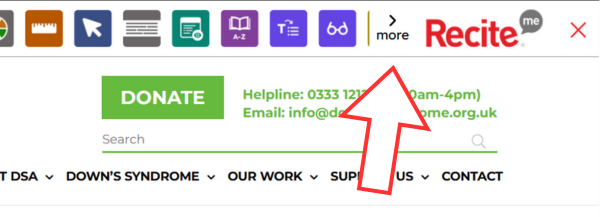
…until you see the red button with the i on it.
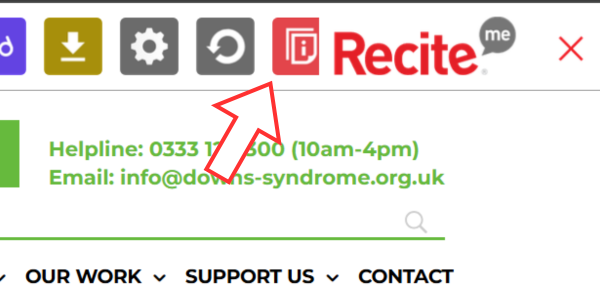
Click the button and you’re taken to the user guide.
When you’ve launched the Toolbar, you’ll notice that as you scroll around the page, each paragraph will be highlighted and a small pop up will appear.
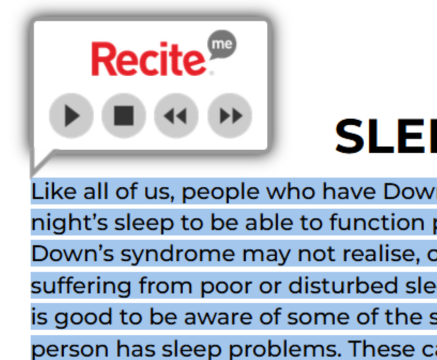
The pop up has Play, Stop, Rewind and Fast Forward buttons. ReciteMe will automatically start reading out the text of the highlighted paragraph. Use the buttons to control it.
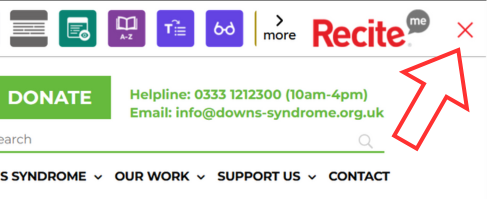
If you no longer want to use the ReciteMe Toolbar, just click the red cross and it will close down.
We do hope you find the ReciteMe Toolbar helpful!
Please don’t hesitate to get in touch if you have any questions about Down’s syndrome, our resources, training and support, programmes or website.
Sign up to our newsletter for all the latest training and support, resources, events, news and opportunities to get involved.